 Skip to content
The KE Live app brings several K-Electric account tasks into one place. Begin from K-Electric's official website, follow its app or portal link and check that you are using the company's service before entering account details.
KE's contact page lists KE Live among its channels for bills, power updates and complaints. This guide is a setup and record-keeping checklist, not a claim that every feature or screen was tested on a particular phone version.

Find the official KE Live app
Use the link on K-Electric's website to reach the appropriate listing or portal. Check the publisher and device compatibility in the current store listing. Do not download a file from an unrelated APK site just because the name contains “KE Live.”
Use the genuine service for any registration or verification step. A code sent to your phone should be entered only in the process you initiated, not read aloud to someone who unexpectedly calls and offers to activate your bill.
Do not supply a bank PIN or password to register an electricity account. Be cautious with requests for payment to unlock a supposedly free account feature.
Keep three types of information separate
Your app login, electricity account number and complaint reference serve different purposes. Label them separately in your own secure notes. A password field is not a place for a bill reference, and a complaint reference is not a replacement for the account number.
When you add or select an electricity account, compare the displayed premises details with the bill. If you help relatives, obtain their permission and avoid mixing their connection with your own.
Where the current app allows you to manage multiple accounts, use clear labels if that option is available and verify the selected account before every action. Do not assume the app has switched accounts just because you opened a different receipt on your phone.
Use the right feature for the task
For a duplicate bill, check the billing month and account before downloading. For a power question, use the relevant power information rather than interpreting the bill balance as a supply-status indicator. For a complaint, keep the acknowledgment and follow-up reference.
KE's schedule page points users to the Power tab for feeder information. If you are checking an interruption, read the current update and distinguish a planned schedule from a fault report.
For payments, verify the account and amount in the authorized payment flow. Keep the receipt from the actual transaction. An app notification and a bank receipt should not be assumed to describe the same event without checking their details.
Save the records you may need later
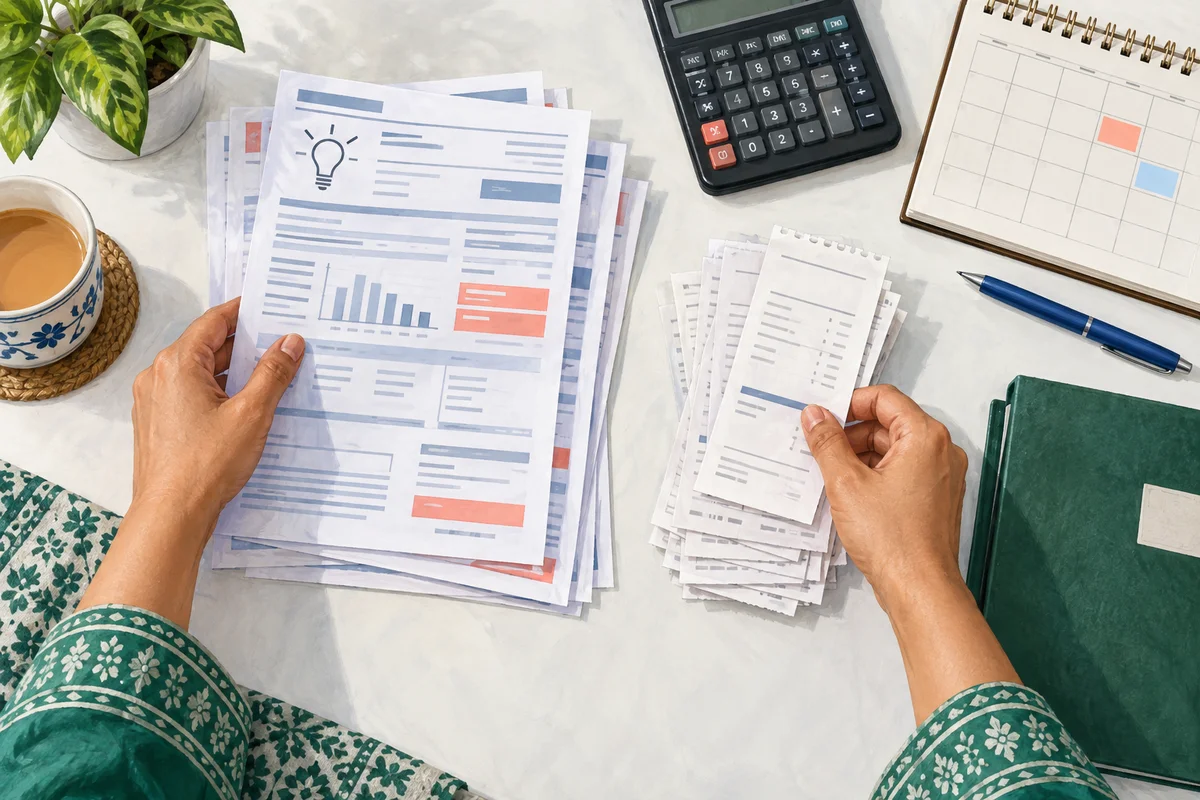
Store important bill copies and receipts outside an app session that you could lose after changing phones. Use folders by account and month. Keep a complaint acknowledgment with the evidence relevant to that case, rather than burying it among unrelated screenshots.
If you intend to reinstall the app or clear its data, make sure you can recover access and that important documents are saved first. Do not assume every downloaded file or local note will be restored automatically.
Frequently asked questions
What if the KE Live app is not working?
Identify the failure: installation, opening, login, account selection or a specific feature. Check official updates and support options before deleting data or repeatedly submitting the same request.
Does the app replace my payment receipt?
Keep the transaction receipt and verify the account entry. A general notification is not necessarily proof of the particular payment you made.
Can I get a bill without using the app?
Use the current official bill route linked in our KE duplicate-bill guide.
What if someone else will manage my bills?
Agree which accounts they may help with and use the service's permitted access options. Avoid sharing passwords or verification codes casually.
Is the KE WhatsApp service the same as KE Live?
They are separate service channels. See the KE WhatsApp guide and verify the current contact through the company before messaging.
The useful habit is simple: check the selected account, complete one task and keep its confirmation before moving to the next.
Editorial Note and Background
Prepared 26 September 2026; publication copy reviewed 29 September 2026. Independent, AI-assisted guidance, not an official company service or a report of a personally completed application. Examples are illustrative. Confirm current account-specific instructions with the company using the contact details on your bill.
Public source domains consulted during preparation: ke.com.pk. Portal access limitations are identified in the article where relevant.
For background reading only: K-Electric background on Wikipedia. Wikipedia is not the authority for your application, complaint, payment or current service instructions.
Contact BijliBills about a correction or read our editorial guidelines.