 Skip to content
An electricity bill PDF gives you a document to keep and print. Your FESCO Bill has opened online, but you still need a copy for your records or a print shop. A screenshot may cut off the payment slip, hide small text or miss the second page. The practical answer is to open the genuine bill, use your browser's print or PDF option, then reopen the saved file to check it.
This guide explains that workflow on a computer, Android phone and iPhone without pretending that every browser uses identical menu names. The bill itself comes from the official FESCO PITC portal. BijliBills is an independent guide and company selector; it does not generate or certify electricity bills.
The saving procedure is also useful for bills from other Pakistani electricity companies. Open the correct provider’s issued statement first, then follow the controls available in your phone’s browser. Page layout and print support can vary, so the final check is whether your saved file contains the complete, readable bill.
Before you download an electricity bill PDF
Open the correct company's bill page and enter your own reference number or use the separate Customer ID route. If you need help identifying the number, read the reference number versus Customer ID guide.
When the bill appears, check its billing month, service address, account identifiers and due date. Saving the wrong account beautifully does not make it useful. If the month is older than expected, find out whether the current bill has been issued before naming the file as a new one.
Close unrelated overlays or expanded menus that would cover the document in the print preview. Wait until the bill has finished loading; an empty frame or error message can also be saved as a PDF if you proceed too quickly.
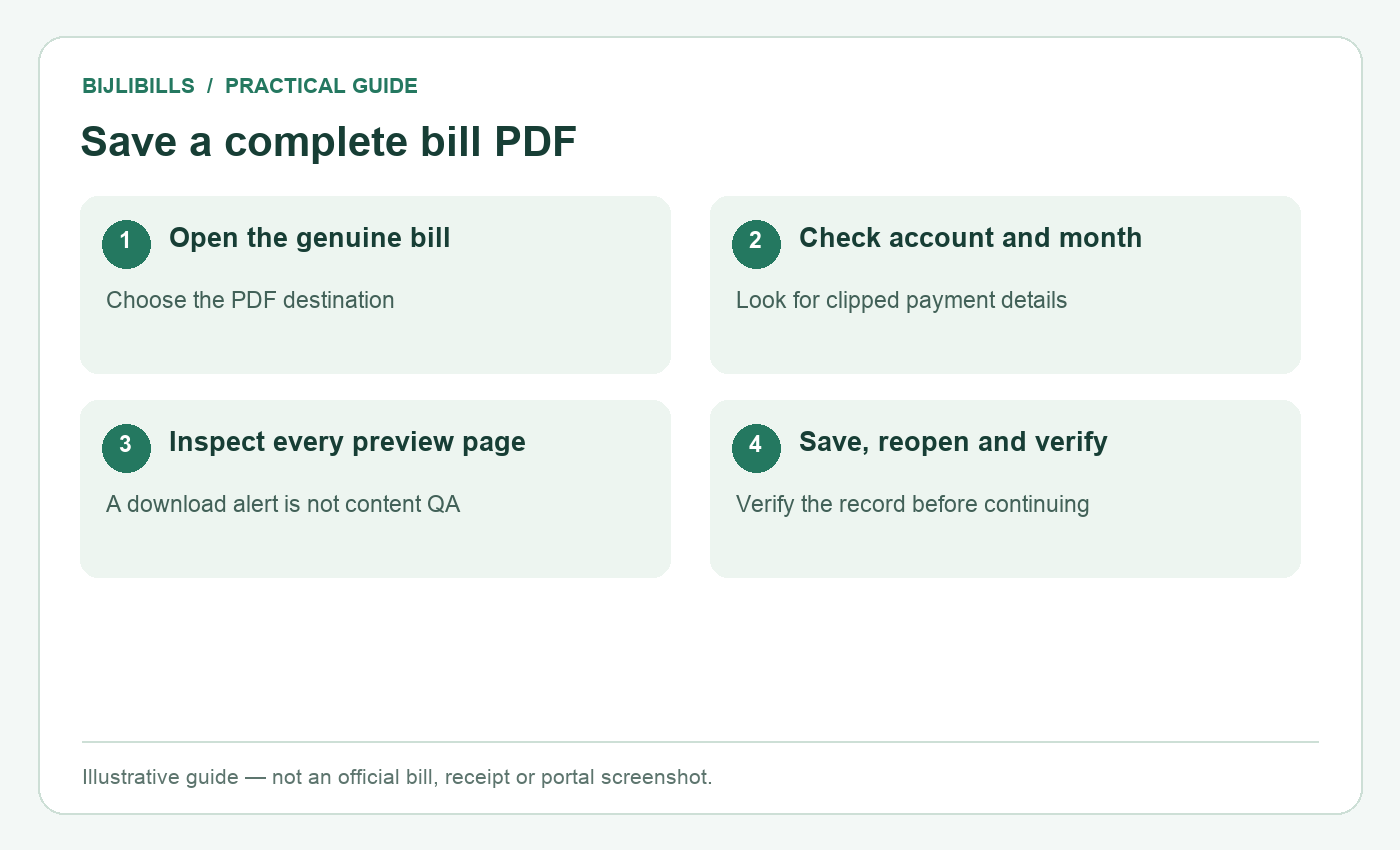
Illustrative workflow: save a complete bill pdf. This is not an official bill or portal screenshot.
Step by step: the complete download and verification process
- Open the official bill through the BijliBills homepage company selector or the PITC link above.
- Verify the company, account and billing month on the returned document.
- Use the bill's print control if available, or open your browser's print or PDF workflow.
- Select a PDF destination or saving option rather than a physical printer if you want a file.
- Review every page of the preview. Check for missing columns, clipped edges, unexpected blank pages and unreadably small text.
- Save the file with a clear provider-and-month name in a private folder you can find again.
- Open the saved PDF from that folder. Confirm the bill is present, complete and readable independently of the original browser tab.
- If you plan to print it elsewhere, transfer this checked PDF rather than a cropped photograph of the screen.
The final reopening step matters. A download notification tells you a file was saved; it does not tell you that the right document is inside it.
Save the bill on a computer
In a desktop browser, use its print command. The usual keyboard shortcut is Ctrl+P on Windows or Command+P on a Mac. Choose a PDF saving destination where the browser or operating system offers it, then inspect the preview before saving.
Chrome's official printing instructions explain its print workflow. Available controls can differ by device, printer and browser version, so follow the labels on your own screen.
If the right-hand columns are cut off, review paper size, orientation, margins and scale. Change one setting at a time and check the result. Shrinking the document until everything fits can make the reference number or payment slip too small; a complete readable page is the goal.
Do not remove pages simply because the preview looks long. Inspect what each page contains first. If a second page is only a blank browser footer, changing margins may help, but preserve any genuine bill information.
Save from an Android phone
On Android, start from the browser displaying the actual bill. Look in the browser menu or sharing options for its print function, then choose the PDF destination if available. The exact route can vary by browser version and phone manufacturer.
Google provides Android printing guidance. If the PDF option is absent, check the browser's current help instead of downloading an unknown “bill converter” app. A normal document should not require you to hand a third party your payment credentials.
After saving, use your phone's Files or Downloads app to find the document. Open it and zoom into the small text. If you can see only a web page address, an error message or a loading screen, return to the official bill and repeat the process after it has rendered completely.
A website shortcut on the home screen is different from a PDF file. The shortcut reopens a web address; it may show a later billing month next time. Keep a real file when you need a record of a particular month.
Save from an iPhone or iPad
In Safari, open the sharing controls for the bill and check the available PDF or print options. Apple's iPhone PDF-saving instructions describe supported ways to keep a webpage as a PDF. Menu placement changes across system versions, so use the current labels rather than an old screenshot.
Save the file to a location in Files that you recognise. If you use a shared iCloud folder, remember that other people with access may also be able to read the bill. Choose a private location for routine household records.
Reopen the file from Files before sending it onward. Check the bottom payment area as well as the first screen. A document that starts correctly can still be incomplete farther down.
Troubleshoot a blank, clipped or incomplete PDF
| Problem | Check first | Useful next step |
|---|---|---|
| Blank preview | Has the actual bill finished loading? | Return to the bill and wait for its content, then print again |
| Only the checker form is saved | Were you still on the search page? | Open the returned bill document before using print |
| Side columns missing | Paper size, margins and scale | Adjust preview settings and inspect all edges |
| Text too small | Excessive scaling | Try a more suitable paper or layout setting |
| Wrong billing month | Month on the original document | Resolve the month issue before saving a new record |
| File cannot be found | Browser's download destination | Open the Downloads or Files app and search the filename |
If the source bill itself is not loading, PDF settings will not fix it. Use the bill-not-found and portal troubleshooting guide first.
A browser's reader mode may remove parts of a complex bill layout. Inspect carefully before relying on it. Likewise, taking a long screenshot is an alternative image record, but it should not be labelled a genuine PDF download.
Print-shop and privacy checks
Ask the print shop to print the PDF you verified. Confirm the paper contains your expected account and month before leaving. Read the amount and due date from the official document; a print worker should not need your bank login, payment PIN or OTP to produce a paper copy.
If you used the shop's computer or messaging account to transfer the file, consider the account information left behind. Send only the document required for printing, avoid bank statements, and remove local copies where practical with the operator's cooperation.
A bill is not harmless just because it can be viewed online. It may reveal a person's name, address, usage and account identifiers. When sharing an example publicly, redact unnecessary personal fields and mark it clearly as a redacted example.
Keep files organised by month
Use a consistent name such as FESCO-2026-10-home.pdf, where the month matches the bill rather than the download date. If you receive a corrected version, retain enough information to distinguish it, for example corrected-2026-10-18 in the filename.
Keep the payment receipt separately. A bill PDF records an amount requested; a receipt records a payment transaction. Combining them in one monthly folder is useful, but do not confuse one with the other. The bill history guide explains how to maintain a useful archive.
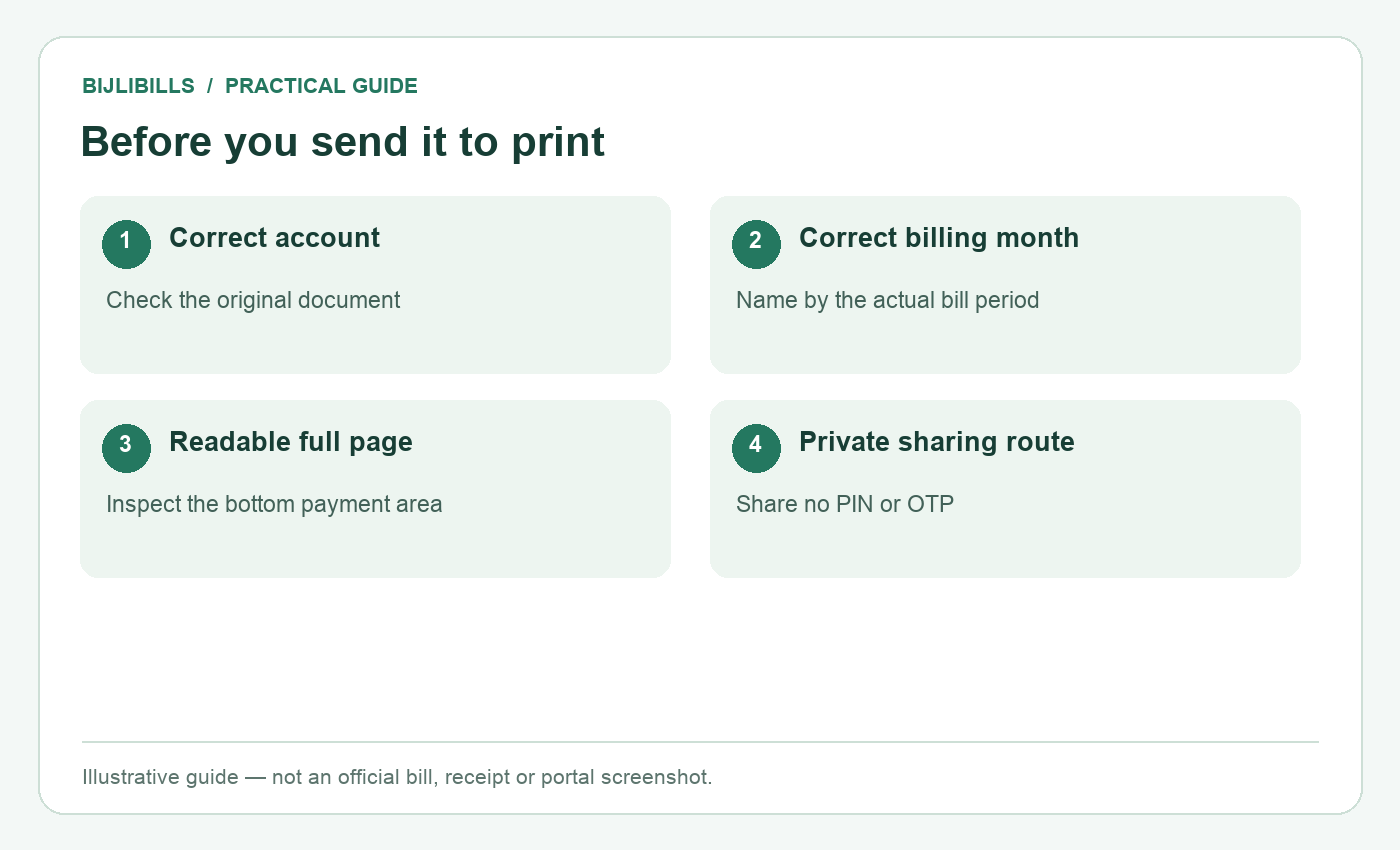
Illustrative workflow: before you send it to print. This is not an official bill or portal screenshot.
Frequently asked questions
1. Is a screenshot the same as a PDF?
No. A screenshot is an image of what was captured. A PDF can preserve a printable document, but you must still check its contents.
2. Can I save the bill without a physical printer?
Yes, where your browser or device offers a PDF saving destination. You do not need to own a printer to keep that file.
3. Why did my PDF save the search form?
You likely started printing before opening the returned bill. Open the actual bill document and repeat the process.
4. Should the filename contain my full reference number?
It does not need to. A provider, month and private premises label are often enough and expose less account information.
5. Can I change the payable amount in a PDF?
Do not edit a bill to resolve a dispute. Ask FESCO for the applicable correction and use the resulting official record.
6. Why is the payment slip missing?
It may have been cropped or moved to another page. Inspect the complete preview and every saved page.
7. Does a saved PDF update next month?
No. It is the file saved at that time. Retrieve and save the next bill separately.
8. What if I download the same month twice?
Compare the documents before deleting either, especially if a correction may have been issued. Keep a clear version label.
9. Is the browser's webpage shortcut an archive?
No. It usually points to a live address. Keep the actual document if you need a stable monthly record.
10. Can I share the PDF with a family member?
Yes, through a trusted private channel when necessary. Avoid sending unrelated identity or payment-app information.
11. Does printing prove the bill was paid?
No. Retain the successful transaction receipt and verify any account posting separately.
12. Must I install a third-party FESCO app?
The public PITC bill page is accessible in a browser. A separate converter or unofficial app is not part of this workflow.
13. What if the saved file opens but looks blurry?
Zoom into the reference and amounts. If the document is unreadable, repeat the save from the original bill rather than enlarging a poor screenshot.
14. Can a print shop retrieve the bill for me?
It may offer that service, but verify the official destination and correct account. Never disclose your payment PIN or OTP for printing.
15. Which date should I use in my monthly folder?
Use the billing month shown on the bill. Keep the download or correction date as a separate label if useful.
Save, reopen, then share
A dependable bill archive needs more than a successful download. Verify the original account, inspect the print preview and reopen the saved PDF. Once those checks pass, you have a clearer document for your own records and any necessary printing.